ChatGPT with IDrive® e2 MCP
IDrive® e2 MCP connects your IDrive® e2 object storage with AI assistants and applications using the open Model Context Protocol (MCP) standard. It enables compatible AI clients to securely access and work with your data using natural language, eliminating the need for custom integrations, scripts, or manual workflows. This guide explains how to connect ChatGPT with IDrive® e2 storage using the hosted MCP.
Prerequisites
- An active IDrive® e2 account.
- Access to a ChatGPT account.
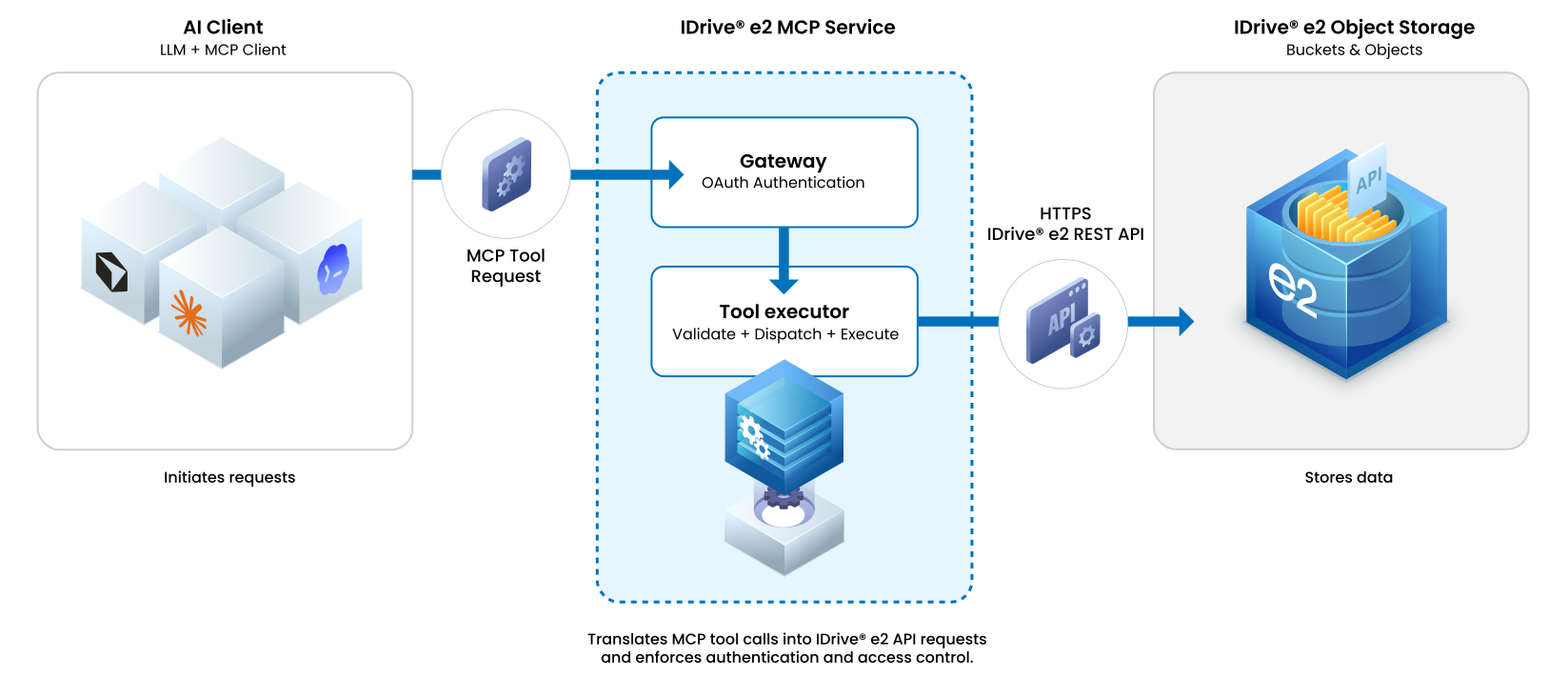
Reference Architecture
Configure ChatGPT for IDrive® e2 MCP
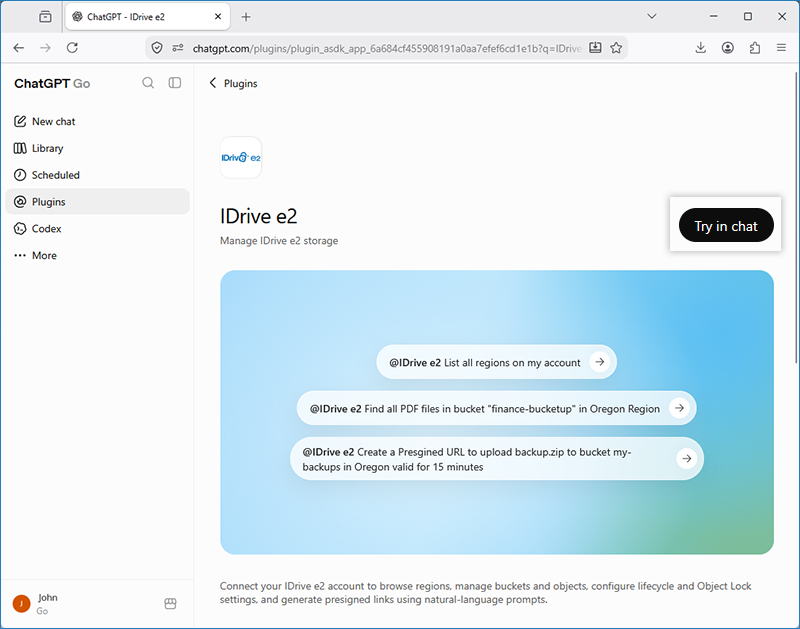
- Click
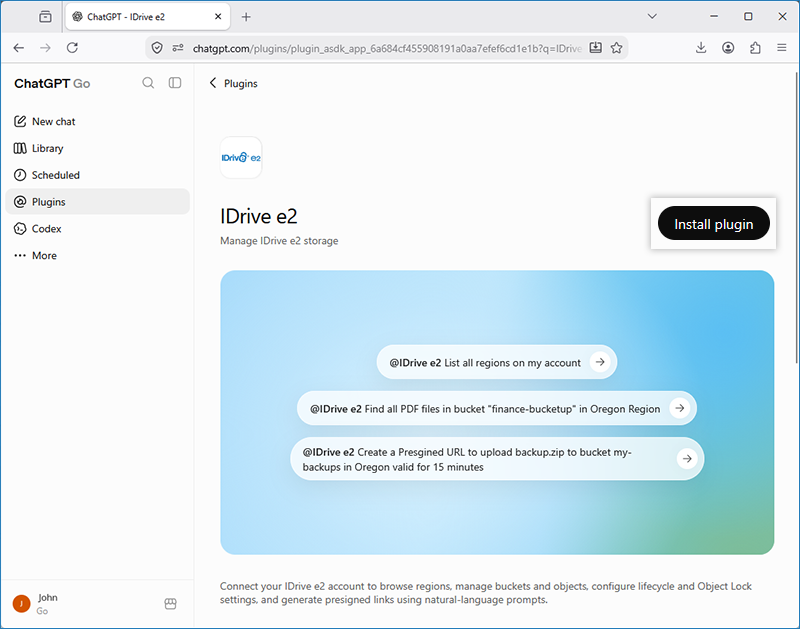
View Plugin to open the IDrive® e2 listing in ChatGPT.
- Click Install plugin.
- You will be redirected to the IDrive® e2 web console.
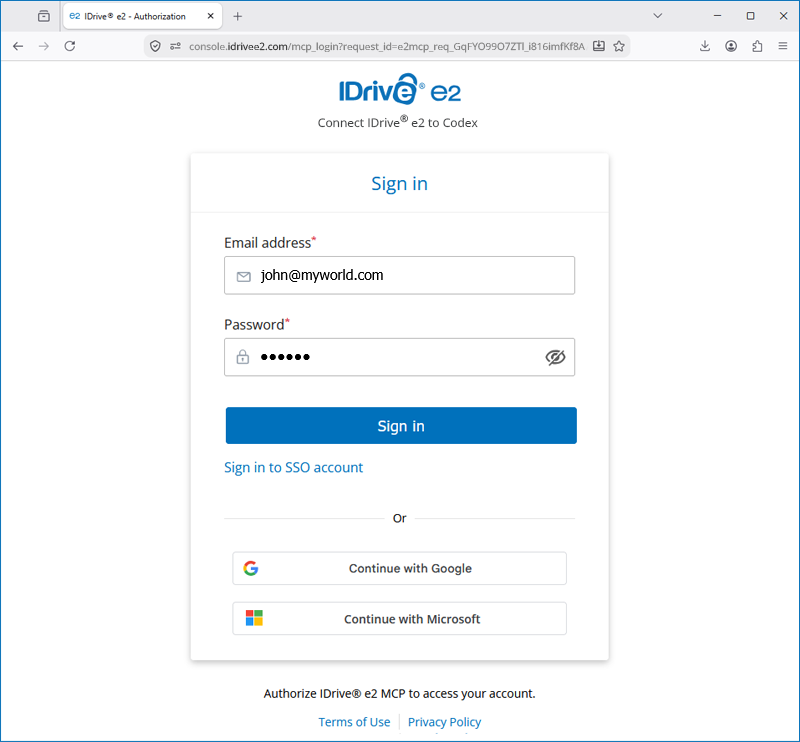
- Provide the following details and click Sign in.
- Enter your IDrive® e2 account email address and password.
- Or you can proceed with Google Sign In.
- Complete MFA if configured for your IDrive® e2 account.
- Set session timeout duration and session access permission.
- After successful connection, you will be redirected to your ChatGPT account.
- Click Try in chat.
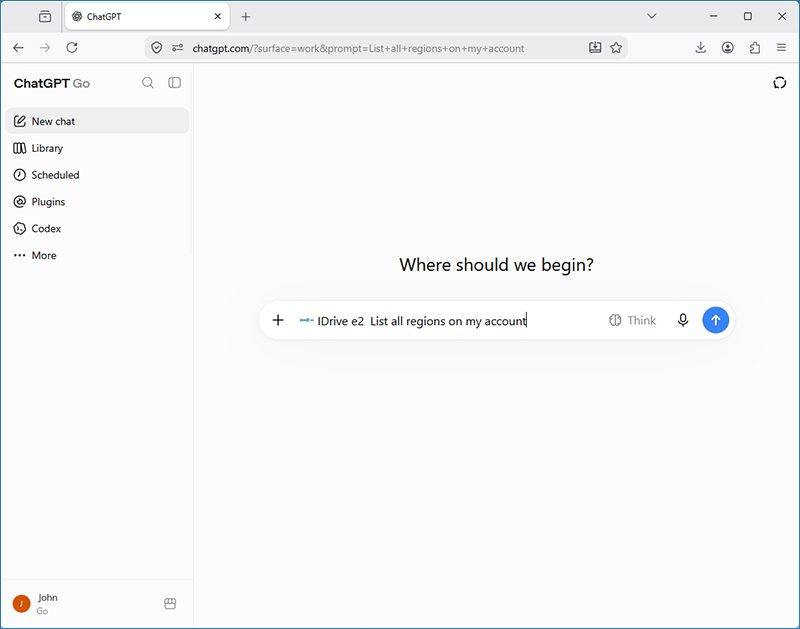
- Test it by using the prompt—List all my regions—and your regions will be listed.